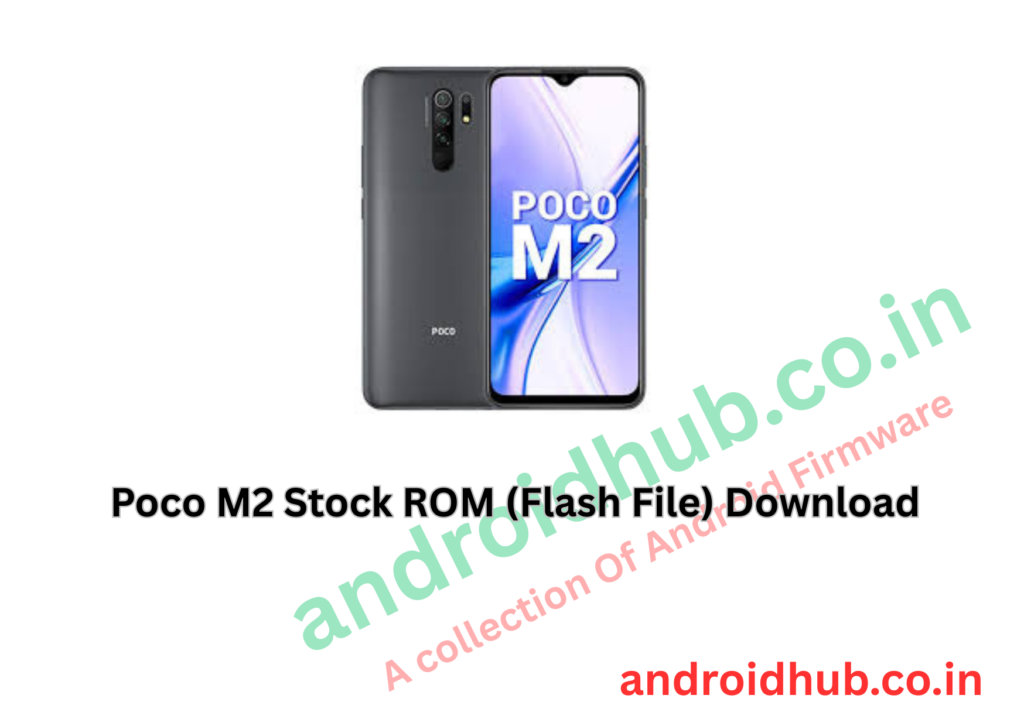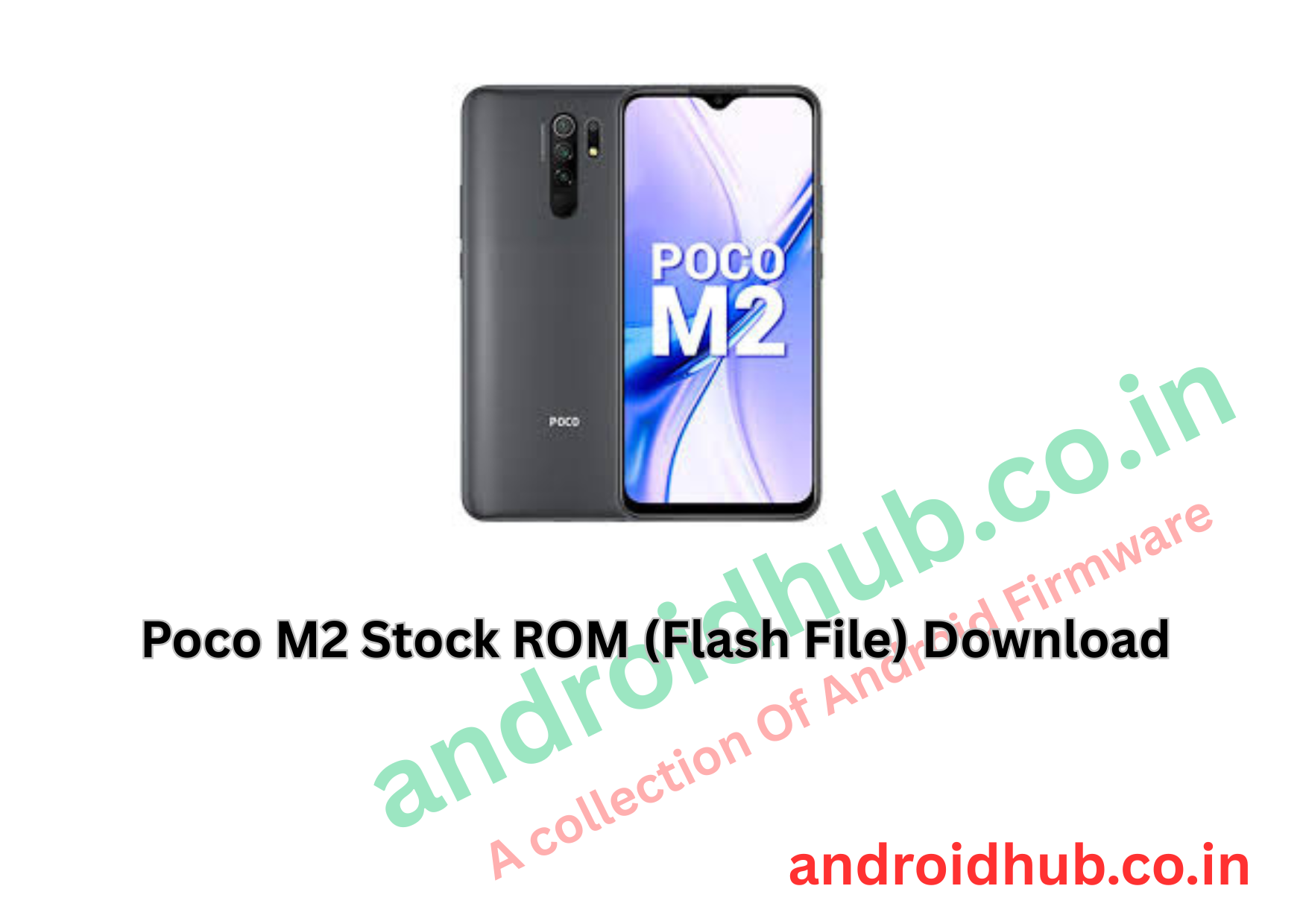
If your Poco M2 is stuck on the logo, dead, bootlooping, or facing software issues, installing the official stock ROM can restore the device to factory condition.
This guide includes firmware details, required tools, and step-by-step flashing instructions using SP Flash Tool.
📱 Device Information
- Device Name: Poco M2
- Codename: shiva
- Processor: MediaTek (MTK)
- Flash Tool: SP Flash Tool
- Firmware Type: Scatter-based Fastboot ROM
📥 Download Poco M2 Flash File
Available Firmware Versions
Android 11
Android 10
Required Tools
- SP Flash Tool
- MTK USB Driver
🔄 How to Flash Poco M2 Using SP Flash Tool
Step 1: Install MTK Driver
Install MediaTek USB drivers on your PC to ensure proper device detection.
Step 2: Extract SP Flash Tool
Download and extract the SP Flash Tool package.
Step 3: Launch the Tool
Open the extracted folder and double-click Flash_tool.exe.
Step 4: Load Scatter File
Click on Scatter-Loading on the right side of the tool.
Select the firmware file named Android_scatter.txt from the extracted firmware folder.
Step 5: Select Authentication File
Load the required authentication (auth) file in SP Flash Tool if included with the firmware.
Step 6: Start Flashing
Click the Download button to begin the flashing process.
Step 7: Connect the Phone
Power off your phone completely.
Press and hold Volume Up or Volume Down, then connect the phone to the PC using a USB cable.
Step 8: Wait for Completion
The flashing process will start automatically.
Once finished, you will see a success message indicating flashing is complete.
🛠 What This Flash File Can Fix
- Stuck on Poco logo
- Bootloop issue
- Software crashes
- System errors
- Virus or malware issues
- Restore to official stock firmware
⚠️ Important Notes
- Flashing will erase all user data
- Make sure firmware matches codename shiva
- Do not disconnect the device during flashing
- Use original USB cable for stable connection
- RMM version may require proper authentication file