
Xiaomi Redmi Note 5 Pro MIUI 12 Flash File (Stock ROM) – whyred
If your Xiaomi Redmi Note 5 Pro is stuck on the Mi logo, dead, in bootloop, or facing serious software errors, installing the official stock firmware can restore the device to factory condition. This guide includes full firmware details, supported versions, tools required, and complete flashing instructions.
⚠️ Important: If you are trying to unlock FRP or remove a Mi Account lock, flashing the firmware will not remove Mi Account. A separate authorized unlock method is required.
Device Information
- Device Name: Xiaomi Redmi Note 5 Pro
- Codename: whyred
- Processor: Qualcomm Snapdragon 636
- Flash Mode: EDL (Emergency Download Mode – 9008)
- Tool Required: Mi Flash Tool
- Firmware Type: Fastboot ROM (Flash via Mi Flash Tool)
Download Xiaomi Redmi Note 5 Pro MIUI 12 Flash File
Available Firmware Versions
MIUI 12 (Android 9.0 Pie)
MIUI 11 (Android 9.0 Pie)
- whyred_global_images_V11.0.5.0.PEIMIXM_20200917.0000.00_9.0_global
- whyred_global_images_V11.0.3.0.PEIMIXM_20191108.0000.00_9.0_global
MIUI 10 (Android 9.0 Pie)
MIUI 10 (Android 8.1 Oreo)
MIUI 9 (Android 8.1 Oreo)
MIUI 9 (Android 7.1 Nougat)
Required Tools and Files
- Xiaomi Mi Flash Tool (latest version recommended)
- Qualcomm USB Drivers
- Redmi Note 5 Pro Test Point Image
- Windows PC
- USB Cable
How to Flash Xiaomi Redmi Note 5 Pro (EDL Test Point Method)
This method is mainly used for dead phones or hard-bricked devices.
Step 1: Download Firmware
Download and extract the correct Fastboot ROM for your model (whyred).
Step 2: Open the Device
Remove the back panel carefully to access the motherboard.
Step 3: Enter EDL Mode
- Disconnect the battery
- Short the test points on the motherboard
- Connect USB cable to PC
- Reconnect the battery
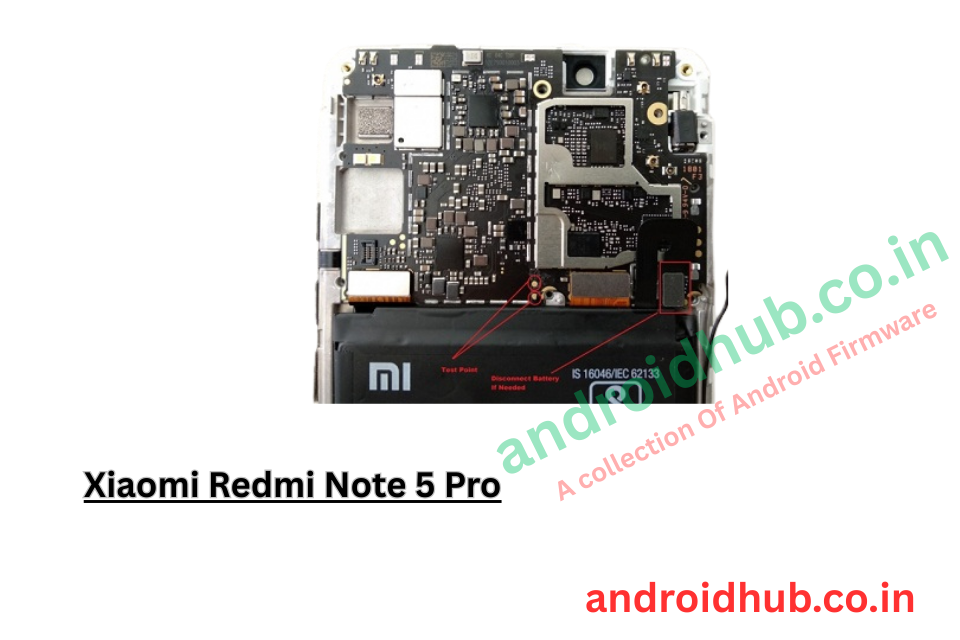
Step 4: Check Device Manager
On your PC, open Device Manager.
You should see:
Qualcomm HS-USB QDLoader 9008
If this appears, the phone is successfully in EDL mode.
Step 5: Open Mi Flash Tool
Run Mi Flash Tool as Administrator.
Step 6: Load Firmware Folder
- Click “Select”
- Choose the extracted firmware folder
- Make sure you select the main folder that contains images and flash_all files
Step 7: Detect Device
Click “Refresh”
Your device should appear in the tool.
Step 8: Start Flashing
Click “Flash”
Wait for the flashing process to complete.
Once finished, the phone will reboot automatically.
What This Flash File Can Fix
- Dead boot issue
- Stuck on Mi logo
- Bootloop problem
- Software crash
- System corruption
- Virus or malware issue
- Downgrade or upgrade MIUI version
- Restore to official factory firmware
Important Notes
- Flashing will erase all data
- Always download firmware for “whyred” only
- Test point method requires opening the device
- Recommended for experienced users or technicians
- Use official or authorized Mi account for unlocking
🔗 Related Flash Files and Tools
If you are working on Xiaomi devices or need more firmware files, check these guides:
• Xiaomi Redmi Note 5 (vince) Flash File Download – Stock ROM with test point method
• Xiaomi Mi Flash Tool Latest Version – Official flashing tool for all Xiaomi Qualcomm devices
• Qualcomm USB Driver Download – Required driver for 9008 EDL mode
• SP Flash Tool (All Versions) – For MediaTek based Android devices
• Best FRP Unlock Tools for Xiaomi Phones – Remove FRP lock easily
• All Xiaomi Flash Files Collection – Browse complete Xiaomi firmware list
• Xiaomi Test Point Guide (EDL Mode) – Step by step method with image reference
📌 More Helpful Guides on AndroidHub
• Samsung Flash Files (All Models)
• Nokia Flash Files (HMD Tool)
• Tecno Flash Files & FRP Guides
• Redmi Mi Account Unlock Methods
• Dead Boot Repair Solutions