Xiaomi Redmi Note 5 Flash File (Stock ROM) – Official Firmware Download
If your Xiaomi Redmi Note 5 is stuck on the logo, dead, bootlooping, or facing software errors, flashing the official stock ROM can restore it to factory condition.
Download Xiaomi Redmi Note 5 Flash File
Available Firmware Versions
• vince_global_images_V11.0.2.0.OEGMIXM_20191108.0000.00_8.1_global
• vince_global_images_V10.2.3.0.OEGMIXM_20190701.0000.00_8.1_global
• vince_global_images_V9.5.4.0.NEGMIFA_20180405.0000.00_7.1_global India
Required Tools
• Xiaomi Flash Tool (Mi Flash Tool)
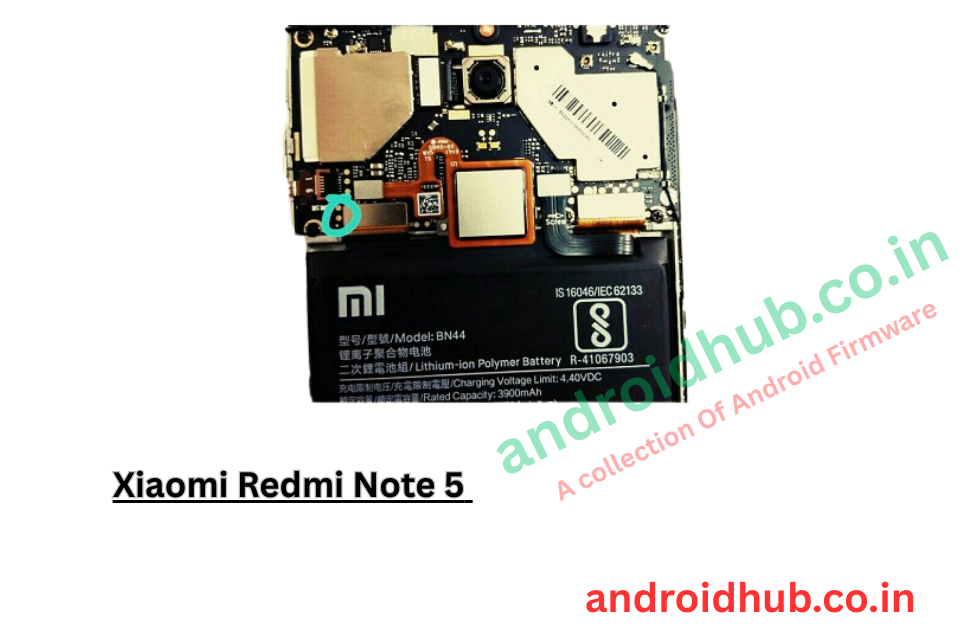
• Redmi Note 5 Test Point Image
How to Flash Xiaomi Redmi Note 5 (Test Point Method)
Step 1: Download Firmware
Download the correct flash file for your device from the premium section.
Step 2: Connect Phone to PC
Connect the phone to your PC using a USB cable and disconnect the battery.
Step 3: Short Test Point
Short the test point on the motherboard and reconnect the battery while the USB cable is connected.
Step 4: Check Device Manager
Open Device Manager on your PC.
You should see Qualcomm HS-USB QDLoader 9008 port.
Step 5: Open Mi Flash Tool
Download and run the Xiaomi Flash Tool on your computer.
Step 6: Select Firmware Folder
Extract the flash file and place it on your Desktop.
Click Select and assign the firmware folder path inside Mi Flash Tool.
Step 7: Start Flashing
Click Refresh to detect the device.
Once detected, click the Flash button.
Wait for the process to complete. The phone will reboot automatically after successful flashing.
What This Flash File Fixes
• Dead boot issue
• Stuck on Mi logo
• Bootloop problem
• Software crash
• System error
• Unbrick device
Important Notes
• Flashing will erase all data
• Use correct firmware version only
• Test point method requires opening the phone
• Recommended for technicians or experienced users
If you want, I can also create:
• SEO meta description
• Short premium sales section
• Warning + disclaimer section
• Internal linking structure for androidhub.co.in