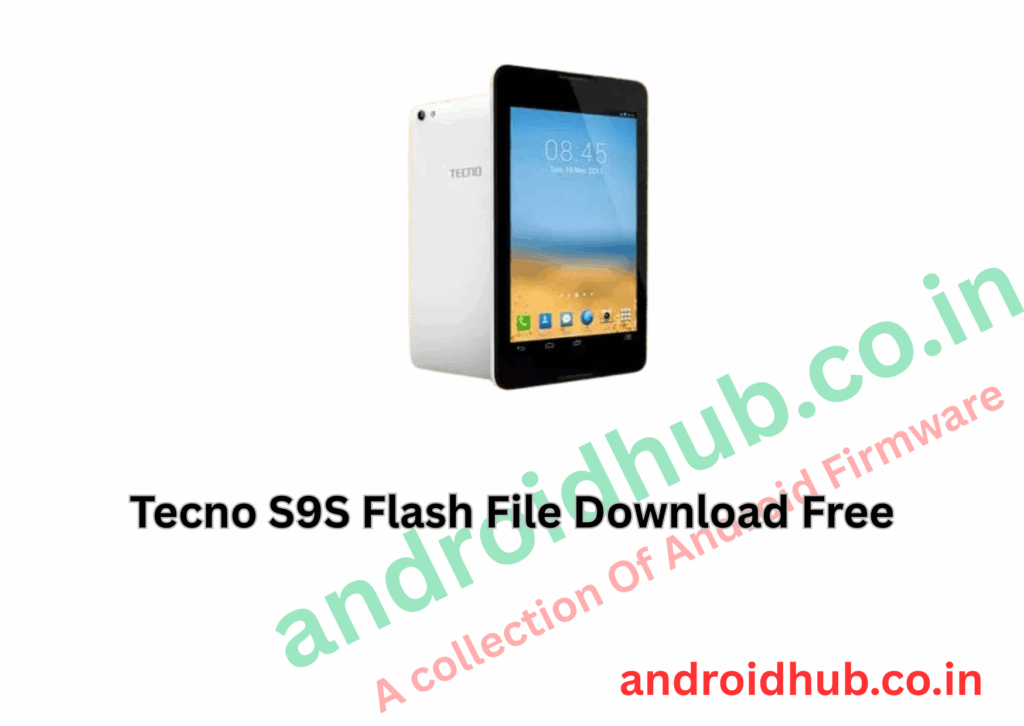
Download Tecno S9S Flash File | Stock ROM & FRP Unlock
Flashing the Tecno S9S using the flash tool will remove FRP lock, fix boot issues, and restore your device to factory settings.
Follow this complete guide carefully to flash your device without errors.
📂 Download Tecno S9S Flash File:
- ✅ Firmware Version Available:
📦 Flash Package Includes:
- Tecno S9S Firmware (Scatter Format)
- Tecno Flash Tool
- MTK USB Drivers
🛠️ Flashing Benefits:
- 🔐 Bypass or Remove FRP Lock (Google Account)
- 🔄 Fix Bootloop, Soft Brick, and Dead Boot
- 🛠️ Solve Software Malfunctions and System Errors
- 📈 Upgrade or Restore Stock Firmware
⚙️ Requirements Before Flashing:
- Windows PC or Laptop
- Good quality USB cable
- Installed MTK Drivers (very important)
- Minimum 50% battery
- Backup of important files (Flashing wipes all data)
🔥 Step-by-Step Guide: How to Flash Tecno S9S
⚡ Important Tip: Most flashing failures happen due to missing drivers. Make sure to install MTK Drivers properly.
📋 Instructions:
- Install MediaTek USB Drivers:
- Download and install the MTK USB Driver package on your PC.
- Extract the Flash Package:
- Unzip the downloaded Tecno S9S Flash File and Tecno Flash Tool.
- Launch Tecno Flash Tool:
- Open the extracted folder.
- Double-click on
SWD_AfterSales.exe(Tecno Flash Tool executable).
- Load the Firmware File:
- In the Flash Tool, go to Operation Area and select Setting (the second option).
- Click to browse and load the
Android_scatter.txtfile located inside the firmware folder.
- Start the Flashing Process:
- After loading the scatter file, click the Play button (Start) to begin flashing.
- Connect the Device:
- Power off your Tecno S9S.
- Hold Volume Down or Volume Up key and connect your phone to the PC via USB cable.
- If the tool doesn’t detect your phone, try connecting without pressing any key.
- Wait for Successful Flashing:
- Once the flashing starts, wait patiently until you see a Download OK (green circle) message.
- Disconnect the device and reboot it normally.
📥 Download Links:
- 📁 Download Tecno S9S Flash File
- 📁 Download Tecno Flash Tool (SWD_AfterSales)
- 📁 Download MTK USB Driver (Latest Version)
🧠 Flashing Troubleshooting Tips:
| Problem | Cause | Solution |
|---|---|---|
| Phone not detected | Missing or outdated driver | Reinstall MTK Drivers |
| Flash tool stuck at 0% | Wrong scatter file or bad USB cable | Check firmware and replace cable |
| Phone dead after flash | Wrong firmware used | Verify device model before flashing |
⚠️ Disclaimer:
- 🚨 Flashing firmware incorrectly may brick your device.
- 🚨 Ensure you are flashing the exact model: Tecno S9S.
- 🚨 Flashing will erase all data — always backup important files.
By following this method, you can successfully unbrick, unlock FRP, and restore your Tecno S9S to full working condition! 🔥📱