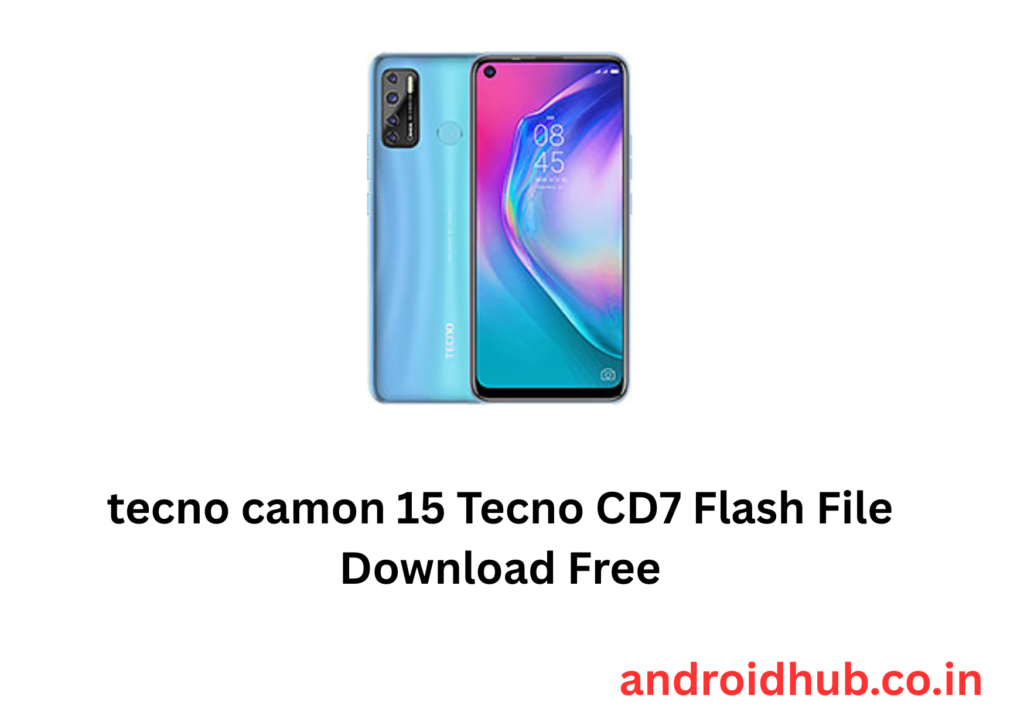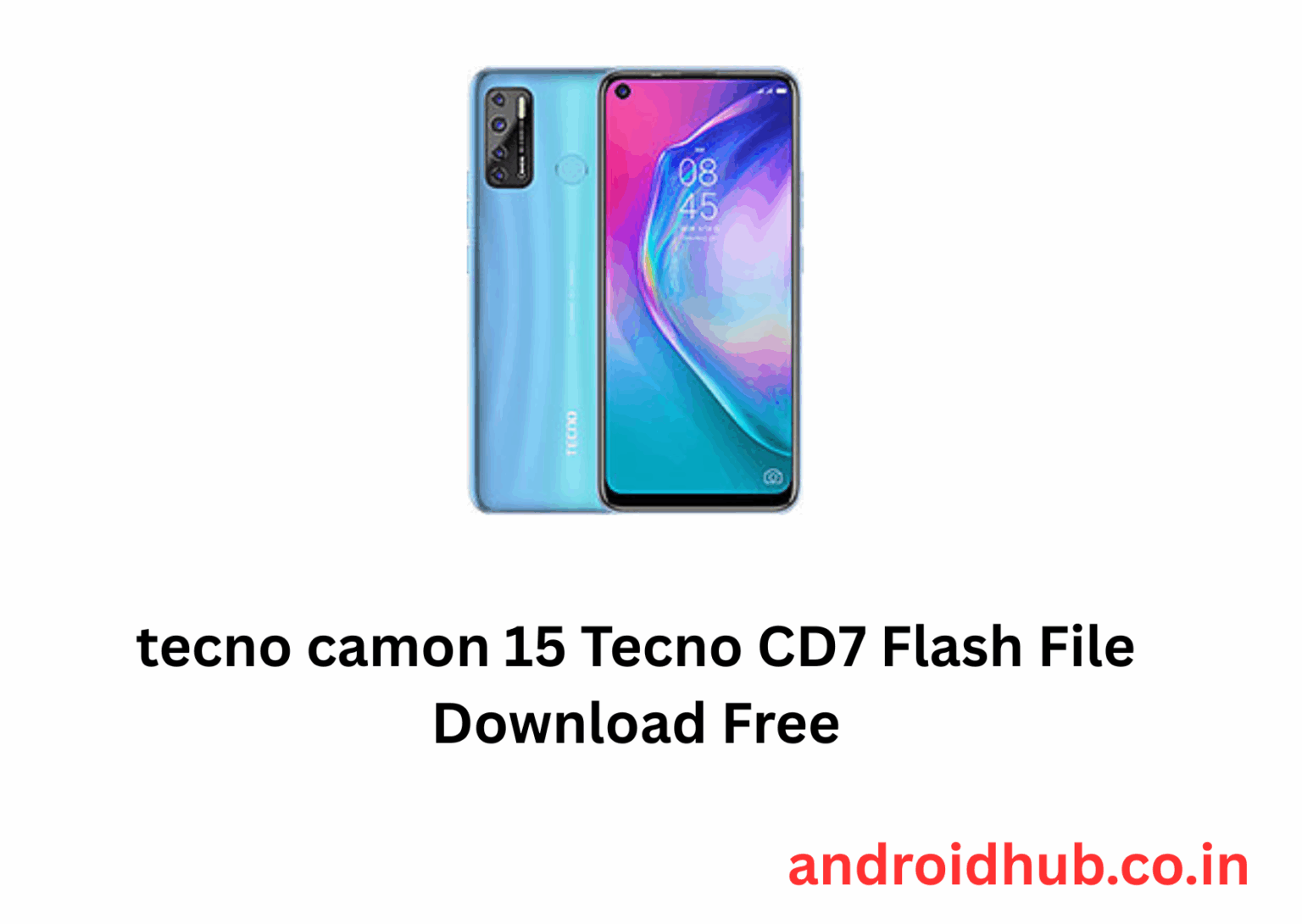
Tecno CD7 Flash File flashing guide with proper formatting, troubleshooting tips, and direct links to androidhub.co.in resources:
Flash Tecno Camon 15 CD7 | Remove FRP Lock | Fix Boot Issues
Flashing your Tecno Camon 15 CD7 can help with:
- 🔓 Removing FRP Lock (Google Account)
- 🔁 Fixing bootloops or stuck on logo
- 🛠️ Restoring a dead or bricked phone
📦 Download Tecno Camon 15 CD7 Flash Files
Choose the firmware based on your device variant:
🧰 Required Tools & Drivers
📲 How to Flash Tecno Camon 15 CD7
⚠️ Important: Flashing erases all data. Take a backup if possible.
Step 1: Install Drivers
- Install the MTK USB Driver on your PC.
- Restart your computer after installation.
Step 2: Setup Flash Tool
- Extract the SP Flash Tool or Tecno Flash Tool.
- Run
Flash_tool.exe(for SP Flash) orSWD_AfterSales.exe(for Tecno Tool) as administrator. - Click “Scatter-loading” and browse to your firmware folder.
- Select the
Android_scatter.txtfile.
Step 3: Start Flashing
- Click the Download button on the tool.
- Power off your device completely.
- Hold Volume Down or Volume Up and connect the USB cable.
- The tool will detect the phone and start flashing.
⏳ Wait for the Download OK or Green Checkmark popup – that means success!
❗ Troubleshooting Guide
📵 Tool Not Detecting Device?
- Reinstall USB drivers.
- Try a different USB cable or port.
- Disconnect all other USB devices.
- Try without pressing any key on some models.
🔁 Bootloop After Flashing?
- Boot into recovery mode (Power + Volume Up)
- Perform a Factory Reset
🔓 Want to Root or Install Custom Recovery?
Let me know – I can provide:
- ✅ TWRP Recovery files
- ✅ Root with Magisk (safely, without trip security)
🔗 Quick Access Links