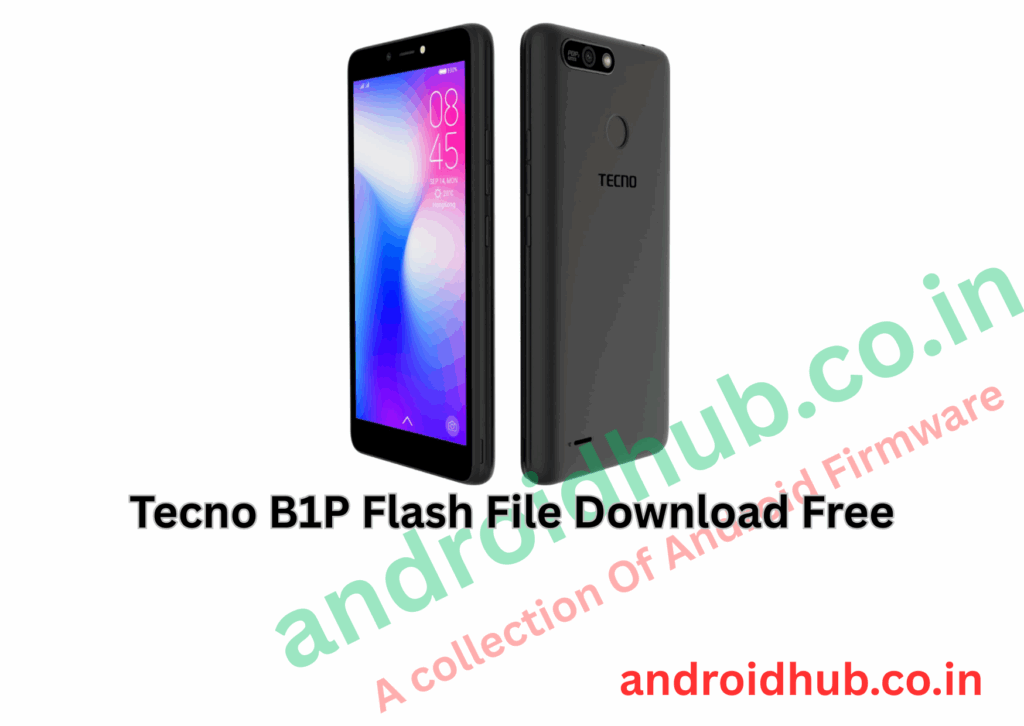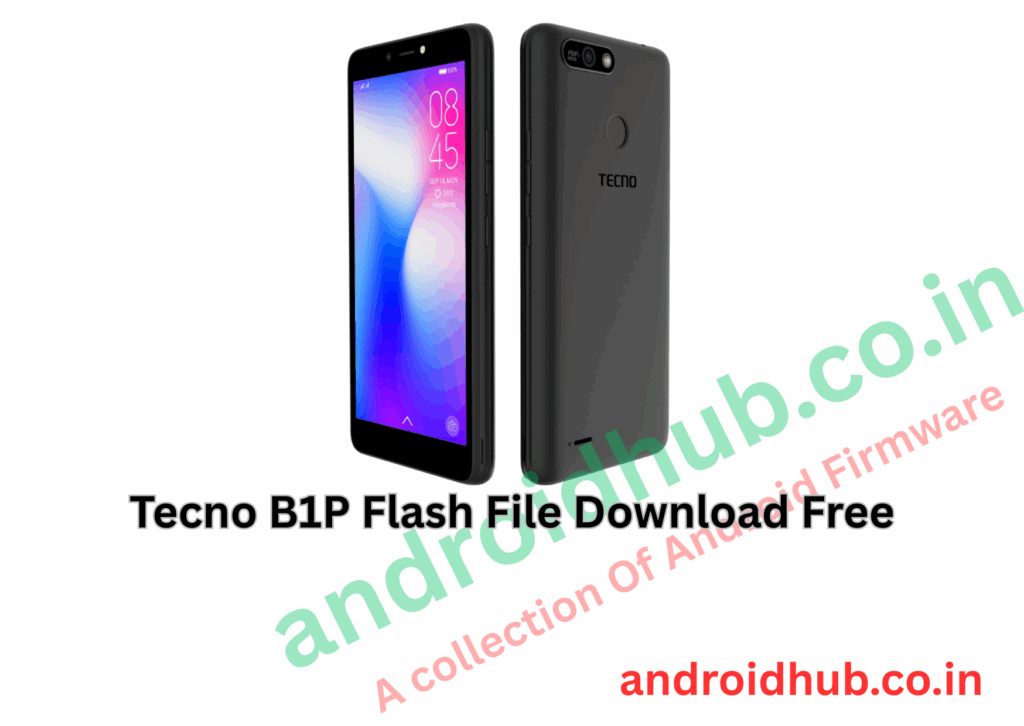
Download Tecno B1p Flash File | Stock ROM & FRP Unlock
Flashing your Tecno B1p will not only fix system errors but also remove FRP lock and bring a dead or bricked phone back to life. Follow this complete guide carefully to successfully flash your device.
📂 Available Firmware for Tecno B1p:
- B1p-F8017ABGH-OGo-190706V174
- B1p-F8017ABGH-OGo-190527V168
- B1p-F8017CI-OGo-190706V162
- B1p-F8017CI-OGo-190510V153
- B1p-F8017AB-GO-190323V158
- B1p-F8017C-GO-190323V148
- B1p-F8017C-GO-181029V82
- B1p-F8017AB-GO-181029V87
📦 Package Includes:
- Stock Firmware (Scatter Format)
- Tecno Flash Tool (SWD_AfterSales)
- MediaTek (MTK) USB Drivers
🛠️ Why Flash Tecno B1p?
- 🔓 Remove FRP Lock (Google Account Lock)
- 🔄 Fix Bootloop / Stuck on Logo
- 🛠️ Repair Software Issues or Upgrade/Downgrade Firmware
- 🚀 Improve Device Stability and Performance
- ⚡ Unbrick Dead or Stuck Devices
⚙️ What You’ll Need:
- A Windows PC or Laptop
- Good quality USB cable
- Installed MTK drivers
- Minimum 50% battery level
- Backup of important data (flashing will erase everything)
🔥 How to Flash Tecno B1p (Step-by-Step Guide)
⚡ Important: Make sure MTK drivers are properly installed; otherwise, the phone won’t connect.
📋 Step-by-Step Instructions:
- Install MediaTek USB Drivers:
- Install MTK drivers on your PC.
- Confirm drivers installation from Device Manager.
- Download and Extract Files:
- Download the appropriate flash file for your device variant.
- Extract both the Tecno Flash Tool and Firmware ZIPs.
- Launch Flash Tool:
- Open the extracted folder.
- Double-click on SWD_AfterSales.exe or Tecno Flash Tool.exe.
- Load the Firmware:
- In the tool, navigate to the Operation Area and click on Setting (second option).
- Load the
Android_scatter.txtfile from the extracted firmware folder.
- Start Flashing:
- After loading the scatter file, click the Play button to initiate the flashing process.
- Connect Your Device:
- Power off your Tecno B1p completely.
- Hold Volume Down or Volume Up, and connect it to the PC via USB cable.
- (If not detected, try connecting without holding any button.)
- Wait for Flash Completion:
- The flashing progress will be visible.
- Once successful, you’ll see a green success notification.
- Reboot Your Phone:
- Disconnect the phone and power it on normally.
- First boot may take longer — don’t panic!
📥 Download Links:
- 📁 Download Tecno B1p Flash Files
- 📁 Download Tecno Flash Tool (SWD_AfterSales)
- 📁 Download Latest MTK USB Drivers
🧠 Common Flashing Problems & Solutions:
| Problem | Cause | Solution |
|---|---|---|
| Phone not detected | MTK driver not installed properly | Reinstall drivers and restart PC |
| Flashing stuck | Bad USB cable or port | Try a different cable/port |
| Error during flashing | Wrong firmware file | Recheck and download correct firmware |
| Phone stuck at logo after flash | Need to factory reset | Boot to recovery and wipe data |
⚠️ Important Notes:
- 🚨 Always double-check that your firmware matches the exact model and version of your Tecno B1p.
- 🚨 Flashing will wipe all user data. Backup important files before proceeding.
- 🚨 Use original or high-quality USB cables for a stable flashing process.
With this guide, you’ll be able to successfully flash, unlock FRP, and restore your Tecno B1p! 🚀