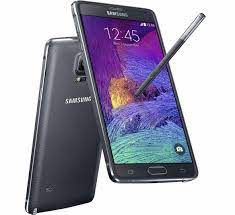
Is your Samsung Galaxy Note 4 (SM-N910G) stuck on the “Samsung” logo, restarting randomly, or showing “eMMC Read Failed” errors? Reinstalling the official stock firmware (Flash File) is the most reliable way to fix deep-rooted software glitches, remove screen locks, and restore your flagship device to its factory-fresh state.
On androidhub.co.in, we provide the latest N910GDTU1DRD1 (Android 6.0.1 Marshmallow) firmware for the Indian region (INS) with maximum download speeds.
📂 Firmware Package Details
| Feature | Details |
| Model Name | Samsung Galaxy Note 4 (Snapdragon) |
| Model Number | SM-N910G |
| Region | India (INS) |
| Android Version | 6.0.1 (Marshmallow) |
| PDA (Latest) | N910GDTU1DRD1 |
| CSC (Latest) | N910GODD1DQC1 |
| Security Patch | April 2018 |
🚀 High-Speed Download Links
- Firmware File (Marshmallow 6.0.1): Download N910GDTU1DRD1_INS.zip
- Flash Tool: Download Odin3 v3.14.4
- Drivers: Download Samsung USB Drivers
🛠️ Why Flash This Firmware?
Flashing the stock ROM on your SM-N910G can resolve a wide range of mobile software problems, including:
- Fix Bootloops: Recovers devices stuck at the “Note 4” startup screen.
- Performance Refresh: Eliminates lag and UI unresponsiveness.
- Remove Locks: Clears forgotten Pattern, PIN, or Fingerprint locks.
- Unroot Device: Returns your phone to 100% official status for security and banking apps.
- System Stability: Repairs corrupted system files and removes persistent app errors.
⚠️ Pre-Flash Checklist
To ensure a successful flash without bricking your device, please follow these steps:
- Backup Data: This process will erase all user data. Backup your photos, S-Notes, and contacts.
- Battery: Ensure your phone is charged to at least 50%.
- Confirm Model: This is strictly for the SM-N910G. Do NOT flash this on the N910C (Exynos) or other variants.
- Hardware Check: If you see “mmc_read failed” in Recovery mode, it may be a hardware issue. Try flashing this firmware first to rule out software.
📖 How to Flash SM-N910G via Odin
Start: Click Start. Wait for the green “PASS!” message. Your phone will reboot automatically into the fresh OS.
Extract: Unzip the firmware package and the Odin tool on your computer.
Drivers: Install the Samsung USB Drivers.
Download Mode: Power off your Note 4. Press and hold Volume Down + Home + Power. At the warning screen, press Volume Up.
Connect: Open Odin and connect your phone to the PC. The ID:COM box should turn blue.
Load File: Click the AP button and select the extracted .tar.md5 firmware file.