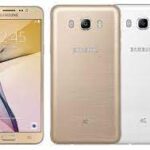
Is your Samsung Galaxy J7 2016 (SM-J710FN) stuck on the boot logo, suffering from slow performance, or showing system errors? Flashing the official stock firmware is the most reliable way to fix “Hang on Logo” issues, remove screen locks, and restore your device to its original factory condition.
On this page, you can download the latest J710FNDDS1BSG1 (Android 7.0 Nougat) firmware for the Indian region (INS) with maximum download speeds.
📂 Firmware Package Details
| Feature | Details |
| Model Name | Samsung Galaxy J7 (2016) |
| Model Number | SM-J710FN |
| Region | India (INS) |
| Android Version | 7.0 (Nougat) |
| PDA (Latest) | J710FNDDS1BSG1 |
| Build Date | September 2019 |
| Security Patch | 2019-08-01 |
🚀 High-Speed Download Links
- Firmware File (Latest): Download J710FNDDS1BSG1_INS.zip
- Firmware File (Stable): Download J710FXXU5BRD5_INS.zip
- Flash Tool: Download Odin3 v3.14.4
- Drivers: Download Samsung USB Drivers
🛠️ Common Software Issues Fixed
Installing this official flash file resolves several common problems:
- Bootloop: Fixes devices stuck on the “Samsung Galaxy J7 (2016)” startup animation.
- Lag & Freezing: Refreshes system files to eliminate slow UI performance and freezes.
- Security & Privacy: Removes forgotten PIN, Pattern, or Password locks.
- System Corruption: Repairs “Unfortunately, System UI has stopped” and other persistent errors.
- Network Stability: Improves 4G connectivity and fixes Wi-Fi drop-out issues.
⚠️ Pre-Flash Checklist
- Confirm Model: This firmware is only for the SM-J710FN. Check your model under Settings > About Device.
- Backup Data: Flashing will erase all user data. Ensure your photos, contacts, and messages are backed up.
- Charge Battery: Ensure your phone has at least 50% power before starting the process.
- OEM Unlock: If possible, enable USB Debugging and OEM Unlock in the Developer Options menu.
📖 How to Flash SM-J710FN via Odin
Flash: Ensure “Re-Partition” is NOT checked. Click Start. Wait for the green “PASS!” message; your device will reboot automatically.
Extract: Unzip the firmware package and the Odin tool on your computer.
Drivers: Install the Samsung USB Drivers.
Download Mode: Power off your phone. Press and hold Volume Down + Home + Power buttons. When the warning screen appears, press Volume Up.
Connect: Open Odin and connect your device to the PC. The ID:COM box should turn blue.
Load File: Click the AP button and select the extracted .tar.md5 firmware file.