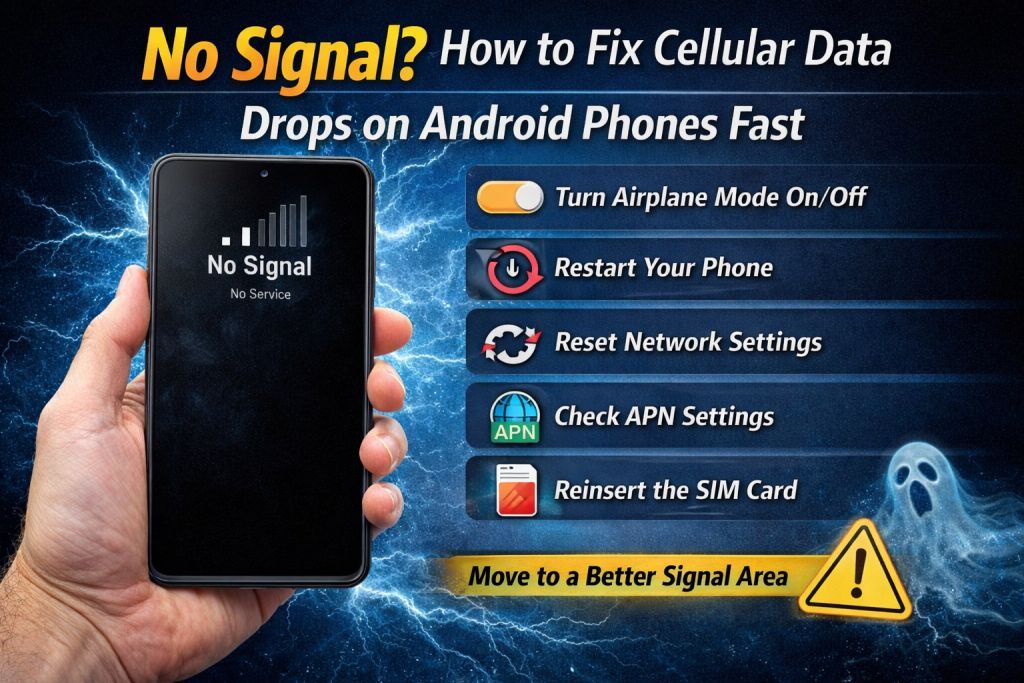
Losing cellular signal or mobile data can be frustrating, especially when you need internet access urgently. Sometimes your phone suddenly shows “No Signal”, “No Service”, or weak network bars, making it impossible to browse the web or make calls.
The good news is that most cellular network problems can be fixed quickly with simple troubleshooting steps. In this guide, we’ll show you how to fix cellular data drops and signal issues in seconds.
These solutions work for most Android smartphones including devices from Samsung, Xiaomi, Vivo, Oppo, and Realme.
Common Reasons for Cellular Data Drops
Before fixing the problem, it’s helpful to understand what may cause signal loss.
Weak Network Coverage
If you are in a remote area, basement, or underground location, the signal strength may be weak.
SIM Card Issues
A damaged or improperly inserted SIM card can cause connectivity problems.
Network Settings Errors
Incorrect APN or network settings can prevent mobile data from working properly.
Software Bugs
Sometimes system glitches or outdated software cause network instability.
Carrier Problems
Occasionally the issue is caused by temporary outages from your mobile network provider.
7 Quick Fixes for Cellular Data Drops
1. Toggle Airplane Mode
One of the fastest ways to refresh your network connection is by turning Airplane Mode on and off.
Steps:
- Swipe down the notification panel.
- Enable Airplane Mode.
- Wait for 10–15 seconds.
- Turn it off again.
This forces the phone to reconnect to the network.
2. Restart Your Phone
Restarting the phone clears temporary software bugs that may affect the network.
Steps:
- Press and hold the Power button.
- Tap Restart.
- Wait for the phone to reboot.
After restarting, check if the signal returns.
3. Check SIM Card Placement
A loose SIM card may cause network drops.
Steps:
- Turn off the phone.
- Remove the SIM card tray.
- Clean the SIM gently.
- Reinsert it properly and power the device back on.
If the SIM card is damaged, contact your carrier for a replacement.
4. Reset Network Settings
Incorrect network settings can prevent cellular data from working.
Steps:
- Open Settings.
- Go to System → Reset Options.
- Tap Reset Network Settings.
This will reset Wi-Fi, Bluetooth, and mobile network configurations.
5. Update Phone Software
System updates often fix network bugs.
Go to:
Settings → Software Update → Download and Install
Installing the latest update can improve connectivity.
6. Check APN Settings
APN (Access Point Name) settings control how your phone connects to mobile data.
Steps:
- Go to Settings → Mobile Network.
- Open Access Point Names (APN).
- Ensure the settings match your network provider.
If unsure, contact your carrier for the correct APN details.
7. Move to a Better Signal Area
Signal strength can drop in locations with obstacles like thick walls or underground spaces.
Try moving to:
- Open outdoor areas
- Near windows
- Higher floors
This may instantly improve signal reception.
When the Problem Is Hardware Related
If none of the solutions work, the issue might be related to hardware, such as:
- Damaged antenna
- Faulty SIM slot
- Network IC problems
In such cases, it’s best to visit a professional mobile technician.
Final Thoughts
Cellular data drops can happen for many reasons, but most issues can be resolved quickly with simple fixes like restarting the phone, resetting network settings, or checking the SIM card.
By following the troubleshooting steps in this guide, you can quickly restore your mobile signal and stay connected without interruptions.